
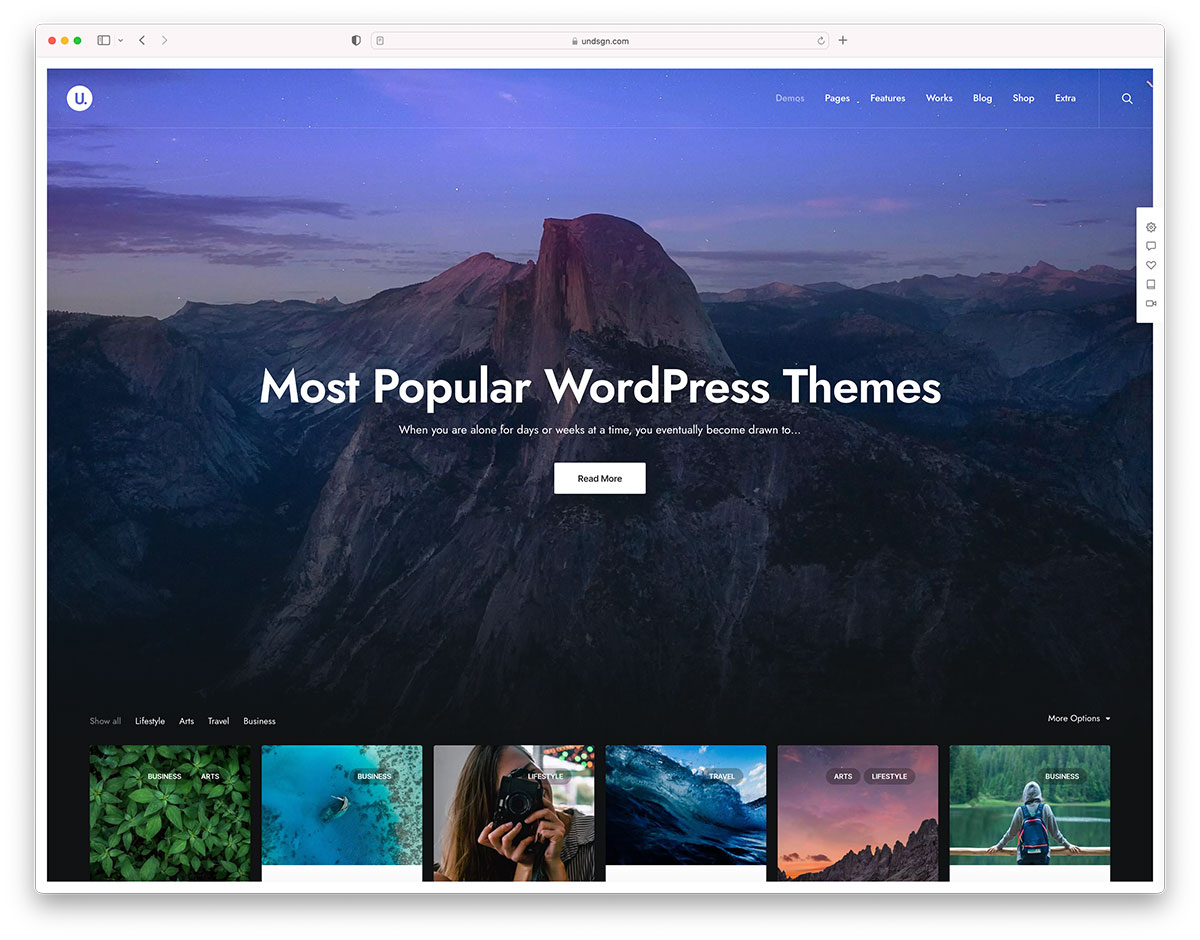
Whether you’ve just updated your WordPress site or you’re doing a general spring cleaning, it’s important to know how to delete unused WordPress themes. Not only does eliminating unnecessary themes help keep your website running efficiently, but it also eliminates potential security vulnerabilities that could arise from outdated themes. Let’s take a look at how to delete unused WordPress themes safely and securely.
Deleting Unused Themes via the Admin Dashboard
The easiest way to delete unused WordPress themes is by logging into your website’s admin dashboard and navigating to Appearance then Themes. This will bring up a list of all the installed themes on your site, as well as the active theme that is currently in use. To delete an inactive theme, click on it to open its details page and then select “Delete” — this will remove the theme from your site completely.
Deleting Unused Themes via FTP Client
If you are unable to access your WordPress admin dashboard due to technical issues, you can still delete unused themes using an FTP client such as Filezilla or Cyberduck. After logging in with your credentials, navigate to /wp-content/themes/ and locate the folder containing the unwanted theme files. Select all of these files and folders and press delete — this will remove them entirely from your server.
Deactivating Unused Themes
If you want to keep a certain theme available for future use but don’t want it cluttering up your current website design, deactivating it instead of deleting is always an option as well. To do so, go back into Appearance then Themes in the admin dashboard and simply click “Theme Details” for each inactive theme you would like to deactivate — this will prevent any unwanted changes from taking place on existing pages while still allowing those particular themes remain available for future use if needed.
Deleting or deactivating unused wordpress themes helps keep your website secure and running efficiently – both very important considerations when managing a website! Whether you choose to delete or deactivate is up to personal preference – either way, following these instructions will ensure that any unwanted or outdated themes are removed quickly and easily so that no time is wasted managing unnecessary content on your site.

